How to Fix Windows Update Error 80092004- In Easy Ways
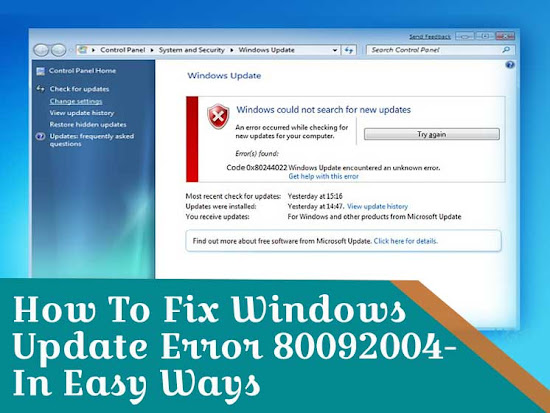
First, let us discuss what basically Windows update error 80092004 is and when it occurs.
What is Windows Update Error 80092004 and What Causes it?
In general, Code
80092004 is an error that is associated with the August 2019 Windows security
update. It comes with the CRYPT_E_NOT_FOUND message that indicates Windows
update can’t proceed because the cryptographic values required by the update
package are not available.
The possible causes
that are responsible for this error are as follows:
- System File Errors
- Incomplete Windows Update
Installations
- Adware or Spyware
- Corrupted or Damaged Windows system
files
- Improper Deletion of Hardware and
Apps
- Improper Shutting Down of PC
Windows Update Error 80092004: Simple Ways To Fix the
Issue
If you’re getting
Windows update error code 80092004, fret not. Simply follow the below-mentioned
solutions to resolve the error.
Solution 1: Run the Windows Update Troubleshooter
To get rid of Windows
update error 80092004, the first thing you should do is to run a Windows update
troubleshooter. If you don’t know how to do it, here is a simple guide.
- Open ‘Setting’.
- Go to ‘Update & Security‘
- Find Troubleshooter
- Hit Run
You can find an online
Windows update troubleshooter on Microsoft’s Website.
Solution 2: Clean Up The Software Distribution Folder
Another way to fix Windows update
error 80092004 is to delete
all the files from your Software Distribution folder and download the folder
again. For this, follow the step-by-step guide.
- Go to C:\Windows\SoftwareDistribution
- Delete everything from the folder
(don’t delete the folder)
This is an effective
strategy for the case of faulty updates as it will force Windows to
re-download.
Solution 3: Install and Update Manually
If you’re facing
trouble even after running the troubleshooter and cleaning up the software
distribution folder, you can try downloading and installing the update
manually. This solution will work with Windows update error 80092004. It is
simple to install and update it manually if you follow the following steps
correctly.
- Go to the Microsoft Website
- Download the Update
- Once the download is
completed, Run the
update and follow the prompts to install it
- If it gets installed without
hurdles, start using
Solution 4: Repair Corrupt System Files With SFM and DISM
The SFC (System File
Check) tool usually comes preinstalled on your Windows device. It predominantly
focuses on scanning your Windows system files for any signs of corruption or
damage. If you’re confronting Windows update error 80092004, you should repair
corrupted files with the help of SFM and DISM. Here is how to do it.
- Open an elevated command prompt Windows
- Input sfc/scannow
- Click Enter
In case the SFC tool
doesn’t work, DISM (Deployment Image Servicing and Management tool can be used
to get the damaged Windows system files fixed. Here are the simple steps to run
DISM.
- Type: DISM.exe/Online/Cleanup-image/Restorehealth
- Hit Enter and wait for few minutes to let it complete
- Once complete, Restart your PC to get the
corrupted files replaced with stuff
Repairing the corrupted
files is the another best option to fix error code 80092004. When the above
three solutions don’t work, this option is worth trying.
We hope this guide helped you to fix Windows update error 80092004. Don’t hesitate to contact us in case you need any assistance. We have a team of experts that have years of experience and apt knowledge to fix any sort of problem. With our technical skills and talent, we’ll keep your PC running fast and smooth.
Comments
Post a Comment