Reinstall Google Chrome on Windows
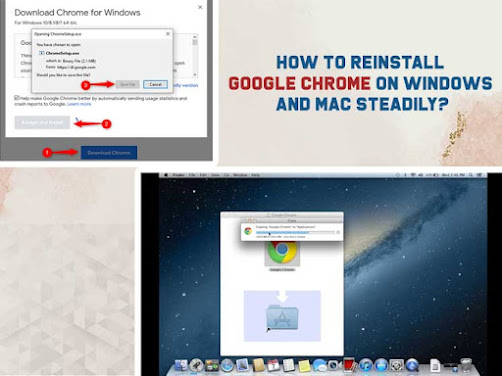
Sometimes, you may find it necessary to reinstall Google Chrome due to the ongoing errors and problems. If you’re in need of doing so, here is a step-by-step guide on how to reinstall Google Chrome on Windows and Mac.
Google Chrome is one of the most important web browsers on
the internet for some good reasons. It is available on every mobile and desktop
operating system and allows users to work seamlessly. The good thing about this
browser is it syncs your bookmarks and history across the devices and is
constantly updating to remain the fastest browser on the internet.
However, Google Chrome can cause problems occasionally. It
can start crashing in the middle of the session or sometimes it refuses to open
or takes time to load. When these problems become too common and start
hindering your work, the best solution is to clear the history, remove all
Google Chrome data and reinstall the browser again.
If you have been using Google Chrome for a long time, you
must know the procedure of reinstalling. If you have never experienced it
earlier, learn how to reinstall Google Chrome on Windows, Mac and other devices
with us. Whatever problem you’re confronting with your Google Chrome, there are
different ways to uninstall and reinstall the browser. This article will
explain most of them, depending on your operating system and type of
device.
Let’s start discussing a step-by-step guide of reinstalling
Google Chrome on Windows and Mac.
How to Reinstall Google Chrome on Windows?
Since most people use Windows PC or laptops, we’re beginning
our guide with Windows operating systems. To reinstall Google Chrome on Windows, first,
you need to uninstall the browser, download it again and then install it. So
let’s go step-by-step and start with uninstalling Google Chrome.
Uninstall Google Chrome on Windows
To uninstall Google Chrome, close all your windows and then
start following the steps. If you want to reinstall Google Chrome, uninstalling
is necessary.
- Click
on the Windows Start button located in the bottom-left
corner of the screen
- In the
search bar, start typing Control Panel, click on it when it
pops up
- Click
on Uninstall a Program under the Programs Menu
- Find
the Google Chrome there and click on the Uninstall button
placed on the top of the windows
- Make
sure to check the ‘Also Delete your Browsing Data’ box
when asked.
This will permanently delete all your bookmarks, history,
cache, and other temporary files. Some of these may cause malfunction to your
Google Chrome, this is why they need to be deleted.
Once you uninstall Google Chrome, you are one step closer to
reinstalling Google Chrome. The new version of Google Chrome is available
online. Download and reinstall Google Chrome.
Download & Install Google Chrome on Windows
Open another browser to download Google Chrome. You can use
Edge, Microsoft’s default browser. Here are the steps to download &
reinstall Google Chrome in quick easy steps.
- Go
to https://www.google.com/chrome/
- Click
on Download Chrome
- Wait
to finish the downloading
- Once
complete, go to the Download folder and start ChromeSetup.exe
- Follow
the instruction correctly and proceed with the installation
Comments
Post a Comment